
Hari Iyer | SyncEzy
CEO 10 Min Read
 Aug 25, 2026
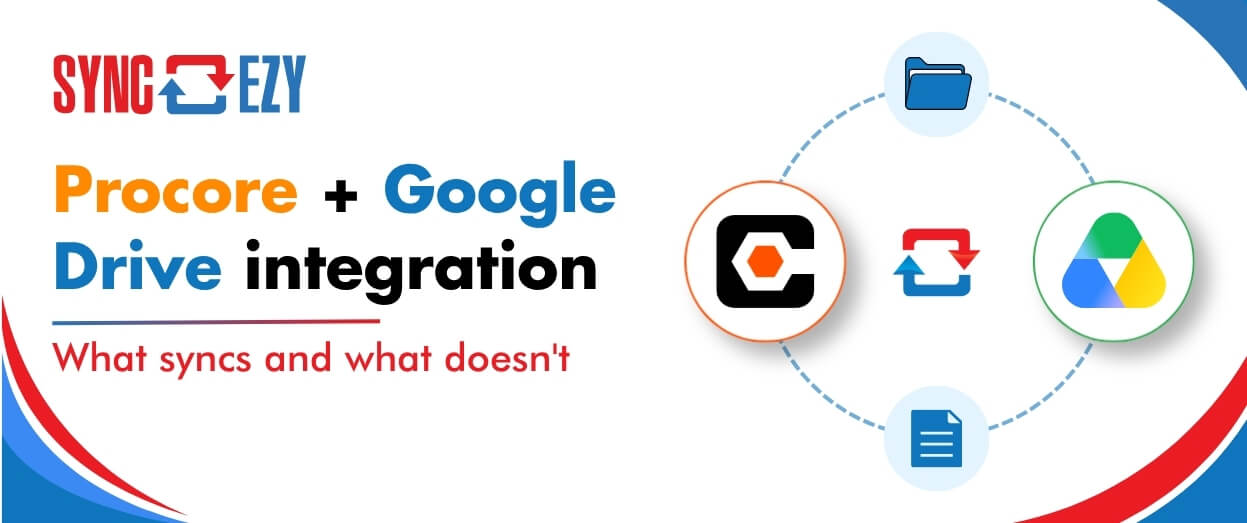
A lot of construction teams are split. Procore runs the project. Google Drive runs everything else: pre-construction, estimating, design collaboration, internal documents. The two systems don’t talk to each other, so documents get manually copied across, or they don’t, and someone ends up working from an outdated file.
The SyncEzy Procore Google Drive integration connects the two directly, keeping project documents in sync in real time so that teams working in either platform are always looking at the same files.
This guide covers exactly what the integration does, the one thing about Google Drive that most people don’t know until it trips them up, and what the setup looks like in practice.
The problem it solves
The teams who find this integration most useful are typically dealing with one of two situations.
The first: they’re running Procore on active construction projects, but the pre-construction phase lives entirely in Google Drive. Drawings, specs, bid documents, and design files accumulate in Drive during estimating and design. When construction starts, someone has to manually pull those files across into Procore. It’s time-consuming, it’s error-prone, and it happens once at the worst possible time: project kickoff.
The second: not everyone in the company has a Procore licence. Field teams and project managers are in Procore, but back-office staff, executives, or teams in other regions are working from Google Drive. When a project manager uploads an updated drawing set in Procore, the people in Drive don’t see it unless someone manually copies it across, which often doesn’t happen.
In both cases, the integration removes the manual step. Files updated in either platform appear on the other side within minutes.
What the integration does
The Procore Google Drive integration creates a live, two-way sync between Procore’s Documents tool and a designated folder in Google Drive. Changes in Procore push to Google Drive. Changes in Google Drive push back to Procore. Neither system is the master: they stay in sync with each other continuously.
The integration also supports an auto-project-sync option: when a new project is created in Procore, SyncEzy automatically creates the matching folder structure in Google Drive and adds it to the sync. For teams running many projects, this removes the need to manually link each new project.
What syncs and what doesn’t
This is the section most people need before they get started, because Google Drive has a behaviour that’s different from SharePoint or OneDrive in a way that directly affects the integration.
Two-way sync:
- All files in Procore’s Documents tool: PDFs, Word documents, Excel spreadsheets, images, CAD files, and any other real file format stored there
- Photos stored in Procore’s Photos tool, which sync through to the corresponding Google Drive folder
One-way sync (Procore → Google Drive):
- RFIs, Submittals, Observations, and other Procore structured tools: these sync as PDF exports to a designated folder in Google Drive. You always have a current PDF in Drive, but editing these tools happens in Procore.
What doesn’t sync: native Google format files
Here’s the part that catches teams out. Google Docs, Google Sheets, and Google Slides aren’t really files. In Google Drive, they’re stored as links that point to Google’s servers. They don’t have a downloadable file that can be transferred to another platform.
This means the integration can’t sync native Google Docs or Sheets to Procore, because there’s no file to move. If your team creates and edits documents natively in Google Docs, those won’t appear in Procore through the integration.
The workaround is straightforward: export the document as a PDF or an Office format (Word, Excel) and save it to the synced folder. That version will sync to Procore. Many teams already do this at key milestones, such as when a specification is finalised or a report is ready for distribution.
If your team is heavily reliant on native Google formats for live collaboration, this is worth knowing upfront. The integration works well for teams where the primary deliverables are files (PDFs, Office documents, drawings) and Google Docs is used for drafting before export.
How the integration is configured
Setup follows the same process as other SyncEzy integrations and typically takes a single onboarding session.
Step 1: Authenticate your accounts. You connect your Procore account and your Google Drive account in the SyncEzy portal. One note on Google authentication: Google has tightened restrictions on third-party access in recent years. The connection may require using an app password or OAuth authentication rather than a standard username and password. The SyncEzy onboarding team will walk you through whichever method applies to your Google Workspace setup.
Step 2: Create the Documents folder in Google Drive. If you’re connecting a project where files already exist in Google Drive, create a top-level folder called Documents inside the project folder before connecting. Move the files and subfolders you want to sync into it. When you connect the project in SyncEzy, select the project folder (the parent), not the Documents folder itself.
If you’re starting fresh from Procore with no existing files in Drive, SyncEzy will create the folder structure in Google Drive automatically when you connect the project.
Step 3: Link projects. Connect each Procore project to its corresponding Google Drive folder. If you’re using auto-project sync, new projects in Procore will be added automatically going forward.
Step 4: Initial sync. For projects that already have files on one or both sides, the initial sync consolidates the two. Where the same file exists in both places, SyncEzy uses the most recently modified version as the source of truth and doesn’t create duplicates.
For large projects with many files, the initial sync can take some time. Running it overnight or over a weekend avoids disrupting the team’s work. SyncEzy’s support team can also initiate the first sync on your behalf in off-hours.
What changes for end users
For most of your team, the answer is: not much.
People using the Procore mobile app in the field keep working as they normally do. When they upload photos or documents through the app, those appear in Google Drive within minutes.
People working in Google Drive keep working in Google Drive. When they add or update a file in a synced project folder (as long as it’s a real file, not a native Google Doc), it appears in Procore’s Documents tool automatically.
The main change is removing the manual copy step that used to bridge the two systems. Project managers no longer have to download from Procore and re-upload to Drive. Estimators don’t have to push pre-con documents into Procore at project start: if they’ve been saving files to the synced Drive folder throughout pre-construction, those files are already in Procore when the project kicks off.
One workflow recommendation that comes up in onboarding: avoid editing the same file simultaneously in both systems within a short window. The sync runs in near real time (one to three minutes per change), but if two people edit the same file in Procore and Google Drive at the same time before the sync can run, there’s a version conflict. In practice, this is rare, but it’s worth knowing about for teams with high document velocity on active projects.
Sync cadence
The integration runs on webhooks, the same as SyncEzy’s SharePoint integration. When a file is added, changed, or deleted in either platform, the platform sends a real-time signal to SyncEzy, which pushes the change to the other side. Updates typically appear within one to three minutes.
If you’re offline (working from Drive for Desktop on a laptop without connectivity), changes are cached locally and sync once you’re back online.
If the sync encounters a disruption, SyncEzy’s team runs automated checks across all accounts daily. You’ll receive an email notification if something needs attention. You can also check the Pending Changes section of the SyncEzy portal at any time to see what’s queued.
Any file that fails to sync due to a file format issue, a permissions problem, or a name conflict will be flagged in the sync log rather than silently dropped. SyncEzy has a failsafe process that retries failed files automatically within 24 hours.
Security and permissions
Service account: The same best practice from the SharePoint integration applies here. Authenticate the integration using a dedicated service account email (such as integration@yourcompany.com) rather than a personal work email. This keeps the sync stable if staff change, and makes it clear in the audit trail which file changes came from the integration versus a person.
Google Drive folder permissions: The integration syncs files, but it doesn’t override the sharing permissions you’ve set in Google Drive. If a folder is restricted to specific users in Drive, those restrictions stay in place. The integration can only access folders the service account has been given permission to access.
Procore role-based permissions: Control what Procore users can do with synced files through Procore’s standard permission settings. If you want field staff to be able to view documents but not delete them, configure that in Procore.
What SyncEzy can see: SyncEzy accesses the content of files and folders in the connected projects in order to sync them. It doesn’t access Google Drive folders or Procore projects that haven’t been explicitly connected to the integration. Restricting the service account’s access to only the relevant project folders gives you an additional layer of control over what the integration can reach.
Frequently asked questions
Can I use this to migrate pre-construction files from Google Drive to Procore at project start?
Yes. Many teams use the initial sync for exactly this purpose: they’ve built up a folder of pre-construction documents in Google Drive and want them in Procore when the project kicks off. Connect the project, run the initial sync, and the files pull into Procore’s Documents tool. The ongoing two-way sync then keeps both sides current.
We work in Google Docs and Sheets. Can we still use this integration?
The integration won’t sync native Google Docs and Sheets files, but it works well alongside a workflow where those documents are exported to PDF or Office format at key points. Teams that use Google Docs for internal drafting and editing, but export final versions as PDFs for distribution, are a good fit.
How does this compare to the Procore SharePoint integration?
The core sync behaviour is the same: two-way, near real-time, ACV-based pricing. The main practical difference is the Google Docs/Sheets limitation that doesn’t apply to SharePoint. If your team works primarily in real file formats (PDFs, Office documents, images), the Google Drive integration is a fully capable alternative. If you’re heavy users of native Google formats as your primary document type, SharePoint may be a better fit for the construction side.
Can I connect multiple Google Drive accounts or Shared Drives?
Yes. If your projects are spread across a Shared Drive or multiple Drive accounts, the team can discuss the right connection structure during onboarding.
Is there a free trial?
Yes. SyncEzy offers a trial period so you can test the sync on a real project before subscribing. Most teams use the trial to confirm the integration handles their specific folder structure and file types correctly before going live.
How to get started
If you’re running Procore and Google Drive and want to see how the integration would work for your setup, a 30-minute call is the fastest way to get a clear answer. The team will walk through your current folder structure, show you a live demo, and map out what the configuration would look like on your end.
Author
Hari Iyer | SyncEzy
CEO

Hari Iyer is the Founder and CEO of SyncEzy, a pioneering company at the forefront of data integration and automation solutions. With a deep understanding of the power of technology and a passion for solving complex business challenges, Hari has emerged as a visionary leader in the industry. His relentless pursuit of excellence and commitment to delivering tangible results have earned SyncEzy a loyal global clientele.
He is not only a successful entrepreneur but also an active contributor to the technology community, sharing his insights through thought leadership articles, speaking engagements, and mentorship programs. Hari’s ability to navigate the complexities of remote work serves as an inspiration for leaders, highlighting the importance of flexibility, work-life balance, and a results-oriented approach in today’s evolving work landscape.
Under his guidance, SyncEzy has gained widespread recognition for its deep integration solutions that seamlessly connect software applications, eliminate data silos, and enhance operational efficiency.
When not working, Hari is trying to be a better father, reading tech news, playing FPS games, and not exercising as he should.