

Hari Iyer | SyncEzy
CEO 9 Min Read
 Sep 01, 2026
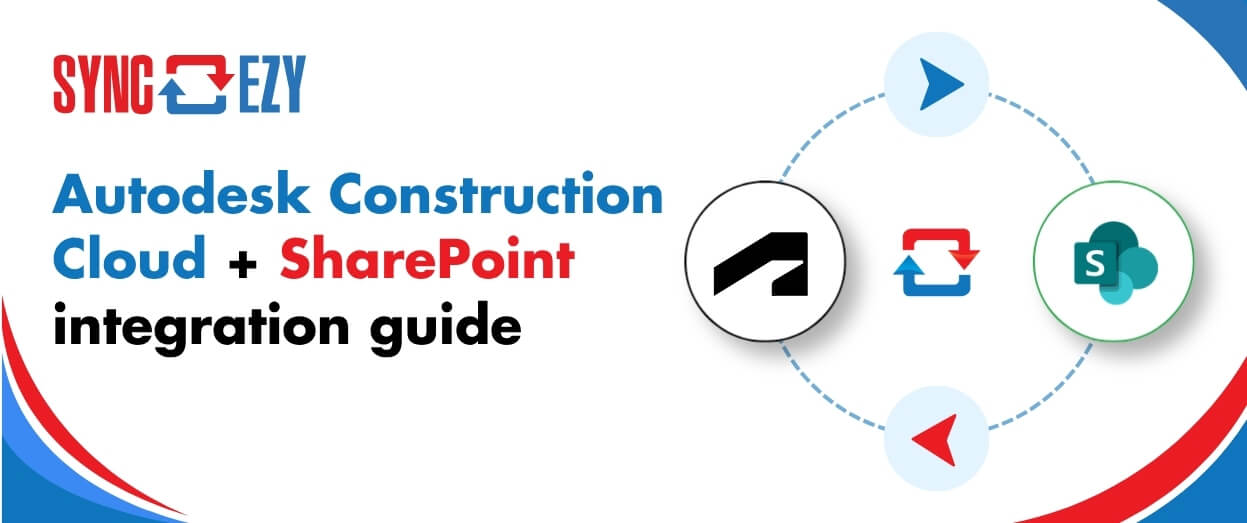
Autodesk Construction Cloud (ACC) is where the project lives. SharePoint is where the rest of the business lives. The problem is that these two platforms don’t talk to each other — so files that project managers upload in ACC don’t appear for office staff in SharePoint, and documents that engineers store in SharePoint don’t make it into ACC without someone manually copying them across.
The SyncEzy ACC SharePoint integration connects the two directly, running a two-way sync in near real time so that teams on either platform are always working from the same files.
This guide covers exactly what syncs and what doesn’t, how the integration is configured, and the two things worth knowing before you set it up.
The problem it solves
Most construction companies run a split-platform operation. ACC handles the active construction project: drawings, RFIs, submittals, daily logs, photos. SharePoint handles everything else: corporate document management, pre-construction files, project handover archives, and access for staff who aren’t on ACC.
The split creates friction in two specific ways.
First, not everyone on a project has an ACC licence. Consultants, subcontractors, and back-office staff who only need to read or access certain documents are expensive to license in ACC. If the files only live in ACC, those people either need a licence they don’t need otherwise, or someone has to manually export and share files with them.
Second, teams that manage documents in SharePoint during pre-construction — estimating, design development, contract preparation — have to manually push all of that into ACC when construction starts. It happens at the worst possible time and it’s error-prone.
The integration removes both problems. When files are updated in ACC, they appear in SharePoint automatically. When files are added or updated in SharePoint, they appear in ACC. External parties can access current documents from SharePoint without needing ACC licences, and pre-construction files are already in ACC when the project kicks off.
What the integration does
The ACC SharePoint integration creates a two-way sync between ACC’s Documents tool and a designated folder in SharePoint. Changes in ACC push to SharePoint. Changes in SharePoint push back to ACC. The sync runs on webhooks — when a file is added, modified, moved, or deleted in either platform, the platform signals SyncEzy, which pushes the change to the other side. Updates typically appear within one to three minutes.
The integration also supports auto project sync: when a new project is created in ACC, SyncEzy automatically creates the corresponding folder structure in SharePoint and adds it to the sync. For teams running many concurrent projects, this eliminates the need to manually link each new project.
What syncs and what doesn’t
Two-way sync:
All files in ACC’s Documents tool sync two-way: PDFs, drawings, Word documents, Excel spreadsheets, CAD files, and any other standard file format stored there. Changes in either direction flow through within minutes.
Photos synced through ACC’s Photos tool also flow through to SharePoint, into a corresponding folder.
One-way sync (ACC → SharePoint):
Structured ACC tools — RFIs, Submittals, Observations — sync as PDF exports to a designated folder in SharePoint. You always have a current PDF in SharePoint, but working with these tools happens inside ACC.
What doesn’t sync:
The integration syncs file-based content. It doesn’t sync ACC-specific metadata, Revit model intelligence, or data fields that exist only within ACC’s structured database tools. If you’re working with Revit files, the files themselves sync (you’ll see the .rvt file in SharePoint), but the model intelligence and ACC-specific version history don’t carry across.
How it’s configured
Setup follows SyncEzy’s standard onboarding process and typically takes a single session.
Step 1: Authenticate your accounts. Connect your ACC account and your SharePoint account in the SyncEzy portal. You’ll need admin-level access in both. The ACC connection uses OAuth authentication through your Autodesk account.
Step 2: Create the Documents folder in SharePoint. This is the most important setup step. Inside your SharePoint project folder, create a top-level folder called Documents before you connect the project. Move any existing files and subfolders you want to sync into it. When you connect the project in SyncEzy, select the SharePoint project folder (the parent), not the Documents folder itself. SyncEzy finds the Documents folder automatically.
If you’re starting from scratch — no existing SharePoint files — SyncEzy creates the folder structure in SharePoint automatically from ACC’s document structure.
Step 3: Link projects. Connect each ACC project to its corresponding SharePoint folder. If you’re using auto project sync, new ACC projects are added automatically from this point forward.
Step 4: Initial sync. For projects with existing files on one or both sides, SyncEzy runs an initial consolidation. Where the same file exists in both places, the most recently modified version wins and no duplicates are created. For large projects, the initial sync can take several hours and is best run overnight or over a weekend.
What changes for end users
For most people on your team, the answer is: very little.
Project managers and field staff in ACC keep working in ACC exactly as before. Photos uploaded from the ACC mobile app appear in SharePoint within minutes. Documents updated in the field are available to the office within the same window.
Office staff and executives who work in SharePoint keep working in SharePoint. When a PM uploads a revised drawing set in ACC, they see it in SharePoint without anyone sending them a file or asking them to log into ACC.
External consultants, subcontractors, and third-party vendors who need access to current project files can be given SharePoint access without purchasing ACC licences. They get read or edit access through SharePoint’s standard permission controls. The integration doesn’t change what they can see: that’s still managed through SharePoint’s permission settings.
One workflow recommendation that comes up consistently in onboarding: avoid editing the same file in both systems within a short window. The sync runs in near real time, but if two people modify the same file in ACC and SharePoint before the sync can run, there’s a version conflict. In practice, this is rare, but it’s worth noting for teams with high document velocity on active projects. Working via OneDrive or SharePoint’s desktop sync clients can amplify this risk — if someone is working offline and reconnects while a change has also been made in ACC, the timing of the sync can create a conflict. SyncEzy uses the most recently modified version as the source of truth when conflicts occur.
Sync cadence
The integration uses webhook-based triggers, not scheduled polling. When a file changes in either platform, the platform sends a real-time signal to SyncEzy, which acts on it immediately. Updates typically appear within one to three minutes.
If a sync disruption occurs, SyncEzy’s team runs automated health checks across all accounts daily. You’ll receive an email notification if something needs attention. You can also check the Pending Changes section of the SyncEzy portal at any time to see what’s queued or flagged.
Any file that can’t sync due to a permissions issue, a file name conflict, or a path length problem is logged in the sync log rather than silently dropped. SyncEzy has a failsafe that retries failed files automatically within 24 hours.
Security and permissions
Service account: The same best practice applies here as with any SyncEzy integration. Authenticate using a dedicated service account email (such as integration@yourcompany.com) rather than a personal work email. This keeps the sync stable through staff changes and makes it clear in the audit trail which changes came from the integration versus a person.
ACC permissions: The integration accesses ACC content through the authenticated account. Keep the service account’s ACC access scoped to the relevant projects rather than giving it organisation-wide access.
SharePoint permissions: The integration syncs files, but it doesn’t override the permissions you’ve set in SharePoint. If a folder is restricted to certain users, those restrictions remain in place. External parties with SharePoint access can only see what SharePoint’s permission settings allow them to see.
Security reviews: Some enterprise customers go through an internal security review before going live. Common questions are about data residency, backup confirmation from AWS (where Autodesk’s infrastructure runs), and how SyncEzy handles credentials. The SyncEzy team can provide documentation to support this process.
Frequently asked questions
Can we use this to reduce ACC licences for consultants?
Yes. This is one of the most common reasons teams set up the integration. Consultants who only need to access documents can be given SharePoint access instead of ACC licences. Current files from ACC appear in SharePoint automatically, so they’re always working from the latest version without ever needing to log into ACC.
What happens to files in SharePoint when a project closes in ACC?
The sync pauses when a project is disconnected. Files already in SharePoint stay there. If you want to archive the SharePoint folder, you can do that through SharePoint after disconnecting the sync. Nothing is deleted automatically.
What if the same file exists in both ACC and SharePoint before we connect?
SyncEzy handles the initial merge by using the most recently modified version as the source of truth. It won’t create duplicates. If you’re unsure which side has the definitive version of a specific file, flag it before the initial sync runs so it can be handled deliberately.
Does it work with ACC’s folder permissions (restricted distribution)?
Files in ACC that are in permission-restricted folders sync based on what the service account has access to. If you want certain files to remain ACC-only and not appear in SharePoint, exclude those folders from the sync scope during setup.
Is there a free trial?
Yes. SyncEzy offers a free plan that lets you connect up to five projects. Most teams use this to test the sync on real projects and confirm everything works as expected before subscribing.
How is the integration priced?
Pricing is based on the Annual Construction Volume (ACV) of the active projects you’re syncing, the same model as Autodesk Build itself. A 30-minute call is the fastest way to get a quote based on your specific project portfolio.
How to get started
If you’re running ACC and SharePoint and want to see how the integration handles your project structure and file types, a 30-minute call is the right starting point. The team will walk through your setup, show you a live demo, and outline what configuration looks like on your end.
Author
Hari Iyer | SyncEzy
CEO

Hari Iyer is the Founder and CEO of SyncEzy, a pioneering company at the forefront of data integration and automation solutions. With a deep understanding of the power of technology and a passion for solving complex business challenges, Hari has emerged as a visionary leader in the industry. His relentless pursuit of excellence and commitment to delivering tangible results have earned SyncEzy a loyal global clientele.
He is not only a successful entrepreneur but also an active contributor to the technology community, sharing his insights through thought leadership articles, speaking engagements, and mentorship programs. Hari’s ability to navigate the complexities of remote work serves as an inspiration for leaders, highlighting the importance of flexibility, work-life balance, and a results-oriented approach in today’s evolving work landscape.
Under his guidance, SyncEzy has gained widespread recognition for its deep integration solutions that seamlessly connect software applications, eliminate data silos, and enhance operational efficiency.
When not working, Hari is trying to be a better father, reading tech news, playing FPS games, and not exercising as he should.

Related Posts
Tags
Categories
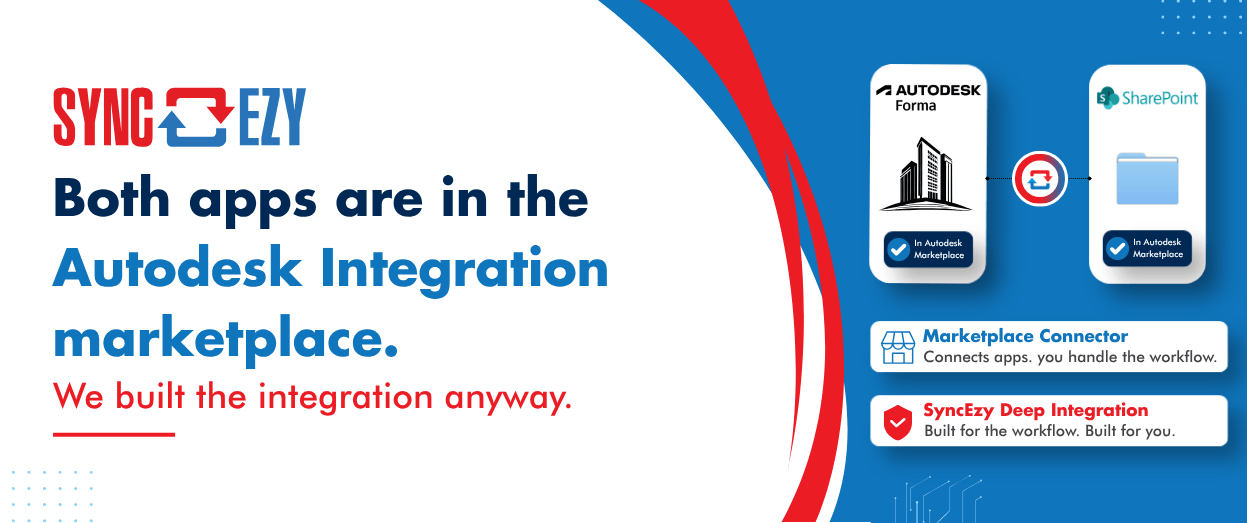
Both apps are in the Autodesk Integration marketplace. We built the integration anyway.
Autodesk Construction Cloud, SharePoint, and the difference between a connector and a deep integration Autodesk Construction Cloud ships with a white-labelled Workato marketplace. SharePoint is in there. Autodesk Construction Cloud is in there. On paper, you can already connect the two without talking to us. So the fair question, and one we get asked on… Continue reading Both apps are in the Autodesk Integration marketplace. We built the integration anyway.
Hari Iyer | SyncEzy
CEO
No More Manual Uploads: Why Construction Teams Are Syncing Autodesk Build and SharePoint Live
Most construction and engineering teams we talk to don’t have a single, dramatic document-management problem. They have a quiet, persistent one. Office staff is editing drawings, RFIs, and submittals in SharePoint, because that’s where the rest of their Microsoft 365 workflow lives. Field teams are capturing photos and updating issues in Autodesk Build, because that’s… Continue reading No More Manual Uploads: Why Construction Teams Are Syncing Autodesk Build and SharePoint Live
Hari Iyer | SyncEzy
CEO
SyncEzy SharePoint Integrations: What Microsoft 365 License Do You Need?
SharePoint is often the system of record for documents such as policies, drawings, SOPs, contracts, and compliance files. SyncEzy integrates SharePoint with platforms like Procore, Simpro, SafetyCulture, Autodesk Construction Cloud, Employment Hero, and Zoho, ensuring documents stay in sync across systems automatically. The Short Answer Microsoft 365 Business Basic is sufficient. SyncEzy works with the… Continue reading SyncEzy SharePoint Integrations: What Microsoft 365 License Do You Need?
Hari Iyer | SyncEzy
CEO
SyncEzy Enhances Capabilities with Autodesk Construction Cloud Integration
The new two-way integration between Autodesk Construction Cloud and Microsoft SharePoint by SyncEzy streamlines project management and enhances collaboration for construction teams. SyncEzy recently announced its latest integration with Autodesk Construction Cloud, significantly enhancing project management capabilities for its customers. This SharePoint integration is designed to improve efficiency and collaboration in construction projects, offering a… Continue reading SyncEzy Enhances Capabilities with Autodesk Construction Cloud Integration
Hari Iyer | SyncEzy
CEO

