

Hari Iyer | SyncEzy
CEO 7 Min Read
 May 14, 2026
Most construction and engineering teams we talk to don’t have a single, dramatic document-management problem. They have a quiet, persistent one.
Office staff is editing drawings, RFIs, and submittals in SharePoint, because that’s where the rest of their Microsoft 365 workflow lives. Field teams are capturing photos and updating issues in Autodesk Build, because that’s the system designed for the job. And in between sits a person, or a recurring task on someone’s calendar, whose job is to make sure the two never get out of step.
That role is what the SyncEzy Autodesk Build × SharePoint integration is designed to remove. We covered it in detail in a recent webinar, and this is the written version for anyone who’d rather read than watch — or who wants something to share with the rest of the team.
The problems we hear most
Before we get to the solution, five things that come up almost every time we talk to a team running this exact setup.
- Team members forget to upload documents into Autodesk or into SharePoint, depending on which system they were working in.
- Field and office staff end up working off different versions of the same document, sometimes for days.
- There’s no backup or redundancy for project information — if a document gets corrupted or lost in one system, there’s no canonical second copy.
- Photos captured on site sit inside Autodesk and never make it back to the office, where they’d be useful for reports.
- People are quietly tired of downloading, editing, and re-uploading the same files manually.
None of these is dramatic on its own. Together, they’re the reason this integration exists as a category in the first place.
What the integration actually does
At its core, the integration is a two-way, every-minute sync between Autodesk Construction Cloud (Autodesk Build, Docs) and SharePoint.
Add or edit a document in Autodesk Build, and it appears in the linked SharePoint location within a couple of minutes. Add or edit a document in SharePoint, and it appears in Autodesk Build. Folder structures replicate. Renames replicate. Deletes the replicate.
Photos work the same way, except one-way: any photos added in Autodesk Build flow into SharePoint. We don’t move photos the other direction because, in practice, no one captures site photos in SharePoint — they’re always taken in Autodesk first.
Because the documents end up in SharePoint, they’re also reachable everywhere else in your Microsoft 365 environment: OneDrive (including offline editing that syncs back automatically), Windows Explorer, and Microsoft Teams. The integration doesn’t just connect two systems — it connects Autodesk to the rest of how your office already works.
Four ways to configure the sync
Different projects need different levels of granularity. We support four modes, picked per project:
Full Project Sync: Everything synced — documents, photos, all folders, everything new that gets created. Default for most teams.
Documents Only Sync: Same as Full, but excludes photos. Useful if you don’t use the Photos tool, or for SharePoint sites with strict storage limits.
Selected Folder Sync: You choose which top-level folders sync. Useful when only part of an ACC project should be visible in SharePoint — e.g., subcontractor folders that don’t belong in your wider corporate Microsoft 365 environment.
Auto Sync: Whenever a new project is created in Autodesk, a matching folder is automatically created in a SharePoint location you nominate, with the structure ready to receive documents. The trade-off: every project lands in the same SharePoint parent. If you need different projects in different SharePoint locations, use one of the manual modes.
You don’t have to commit to one mode for all projects — mix and match based on what each project needs.
What changes for end users
This is the most underrated part of the integration: nothing.
End users don’t log into the SyncEzy portal. They don’t learn a new tool. They keep using Autodesk if they were already using Autodesk, and they keep using SharePoint if they were already using SharePoint. The sync is invisible.
That matters more than it sounds. Most integration projects fail at the change-management step, not the technical step. If your site teams need to be trained on a new piece of software in order for documents to flow correctly, you’ve added work, not removed it.
Security and support
SyncEzy is SOC 2 Type II certified, and the document transfer itself uses the CASB-II protocol. For most teams going through procurement or IT review, that’s enough to clear the security questionnaire. If your security team has specific questions — data residency, encryption posture, audit trails — we have answers ready and can walk through them on a call.
Support runs 24/5, starting Monday morning in New Zealand and rolling through to Friday close of business in the US. The fastest channel is live chat from inside the SyncEzy portal; if a question can’t be resolved in a few exchanges, we drop a meeting link into the chat and jump on a screen-share with you to work through it together. We also have the option to “force sync” any individual file, which pushes it to the top of the priority queue for situations where you need a document moved now.
How the setup actually works
When you sign up, you get access to integrations.syncezy.com. You add the Autodesk × SharePoint integration, connect both systems through a validation flow, and then configure each project you want to sync.
The actual connection takes minutes. The first sync of a project depends on how much data already exists in it — small projects are live almost immediately; larger ones can take half an hour. After that, the system checks for changes once a minute and moves anything new across.
Permissions stay where they already live. We don’t manage user access from inside SyncEzy — if you need a folder restricted, you set that in SharePoint or Autodesk the way you already do. That’s deliberate: it means access control stays in tools your IT team already audits.
Questions we get most often
What happens if both sides edit the same document at once
Vanishingly rare in practice — office and field teams typically work on different artefacts at different times — but if it happens, the most recent change wins. If you have a specific concurrent-edit scenario you want walked through, the discovery call is the right place for it.
Where does the data actually flow?
Through SyncEzy’s SOC 2 Type II environment, using CASB-II for the document transfer itself. We can share data-residency details on request.
How is pricing structured?
Tiered, based on the scope of your usage. We’ll walk you through a quote in a discovery call once we understand the size of your environment and the sync mode that fits.
Watch the recording — or skip ahead
The recording covers all of the above with a live demo of the setup flow, the admin view, and how a document moves from one side to the other:
▶ Watch the replay
If you’d rather skip past the demo and talk to someone about how this would fit your specific setup, a 15-minute discovery call is the fastest path:
Book a discovery call
Author
Hari Iyer | SyncEzy
CEO

Hari Iyer is the Founder and CEO of SyncEzy, a pioneering company at the forefront of data integration and automation solutions. With a deep understanding of the power of technology and a passion for solving complex business challenges, Hari has emerged as a visionary leader in the industry. His relentless pursuit of excellence and commitment to delivering tangible results have earned SyncEzy a loyal global clientele.
He is not only a successful entrepreneur but also an active contributor to the technology community, sharing his insights through thought leadership articles, speaking engagements, and mentorship programs. Hari’s ability to navigate the complexities of remote work serves as an inspiration for leaders, highlighting the importance of flexibility, work-life balance, and a results-oriented approach in today’s evolving work landscape.
Under his guidance, SyncEzy has gained widespread recognition for its deep integration solutions that seamlessly connect software applications, eliminate data silos, and enhance operational efficiency.
When not working, Hari is trying to be a better father, reading tech news, playing FPS games, and not exercising as he should.

Related Posts
Categories
Autodesk Construction Cloud + SharePoint integration guide
Autodesk Construction Cloud (ACC) is where the project lives. SharePoint is where the rest of the business lives. The problem is that these two platforms don’t talk to each other — so files that project managers upload in ACC don’t appear for office staff in SharePoint, and documents that engineers store in SharePoint don’t make… Continue reading Autodesk Construction Cloud + SharePoint integration guide
Hari Iyer | SyncEzy
CEO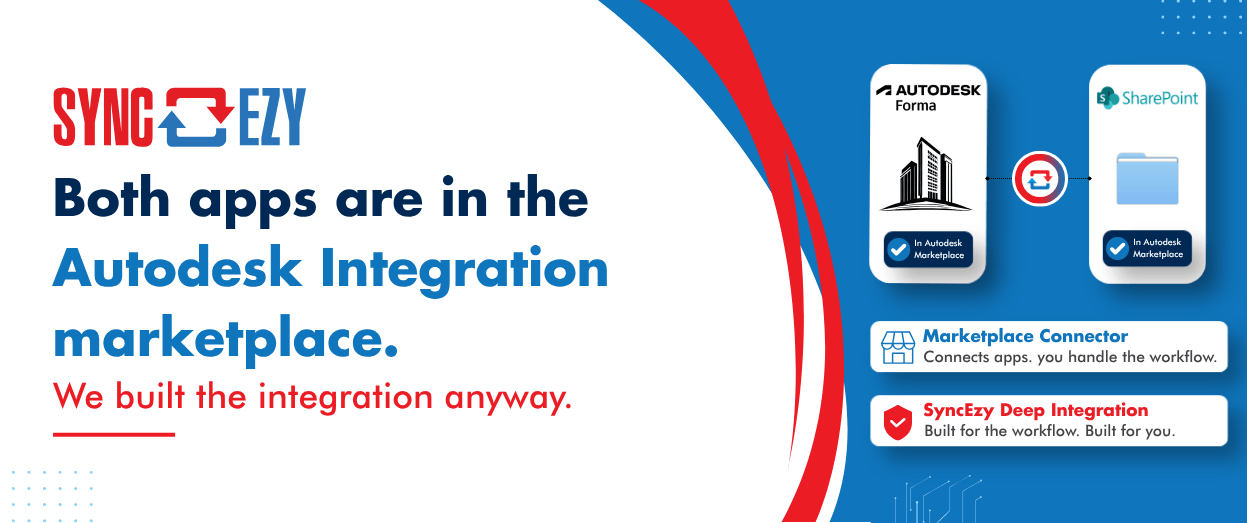
Both apps are in the Autodesk Integration marketplace. We built the integration anyway.
Autodesk Construction Cloud, SharePoint, and the difference between a connector and a deep integration Autodesk Construction Cloud ships with a white-labelled Workato marketplace. SharePoint is in there. Autodesk Construction Cloud is in there. On paper, you can already connect the two without talking to us. So the fair question, and one we get asked on… Continue reading Both apps are in the Autodesk Integration marketplace. We built the integration anyway.
Hari Iyer | SyncEzy
CEO
SyncEzy SharePoint Integrations: What Microsoft 365 License Do You Need?
SharePoint is often the system of record for documents such as policies, drawings, SOPs, contracts, and compliance files. SyncEzy integrates SharePoint with platforms like Procore, Simpro, SafetyCulture, Autodesk Construction Cloud, Employment Hero, and Zoho, ensuring documents stay in sync across systems automatically. The Short Answer Microsoft 365 Business Basic is sufficient. SyncEzy works with the… Continue reading SyncEzy SharePoint Integrations: What Microsoft 365 License Do You Need?
Hari Iyer | SyncEzy
CEO
SyncEzy Enhances Capabilities with Autodesk Construction Cloud Integration
The new two-way integration between Autodesk Construction Cloud and Microsoft SharePoint by SyncEzy streamlines project management and enhances collaboration for construction teams. SyncEzy recently announced its latest integration with Autodesk Construction Cloud, significantly enhancing project management capabilities for its customers. This SharePoint integration is designed to improve efficiency and collaboration in construction projects, offering a… Continue reading SyncEzy Enhances Capabilities with Autodesk Construction Cloud Integration
Hari Iyer | SyncEzy
CEO

