

Hari Iyer | SyncEzy
CEO 10 Min Read
 Jul 14, 2026
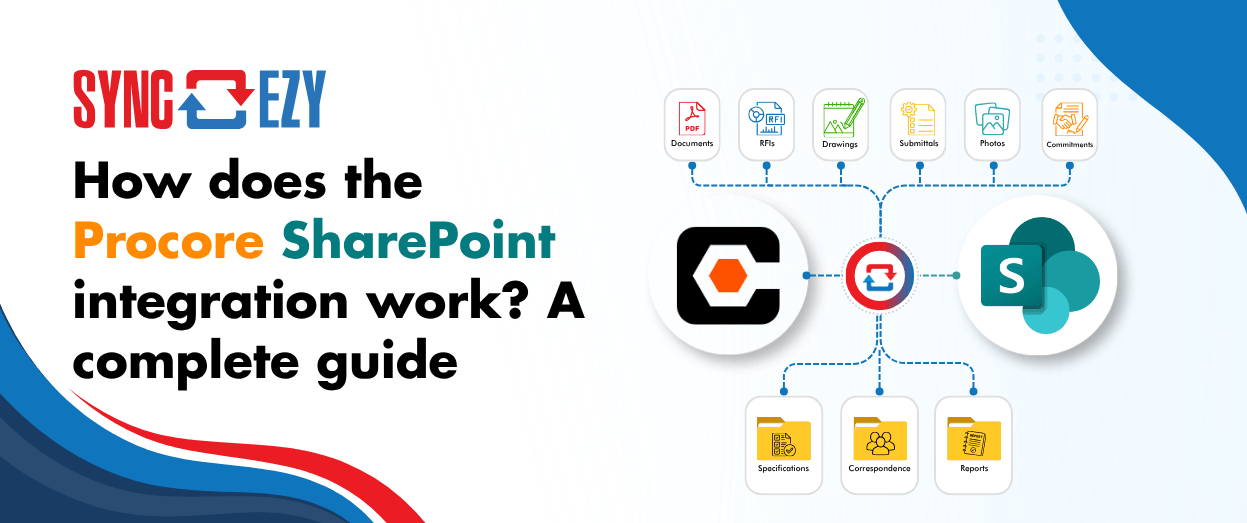
If you’re running Procore on the project side and SharePoint (or OneDrive) on the business side, you’re probably managing a version problem. Documents live in both places, and at any given moment you’re not certain which one is current. Field teams work in Procore. Office teams work in SharePoint. Someone always ends up uploading the same file twice, or missing an update that was made on the other side.
The SyncEzy Procore SharePoint integration solves this by keeping both systems in sync automatically, in real time, so that whichever platform someone opens, they’re looking at the same files.
This guide covers exactly how the integration works, what syncs and what doesn’t, how it’s set up, and what changes for your team once it’s live.
The problem it’s built for
The teams who find this integration most useful are typically dealing with one of a few recurring issues.
The most common: project documents are created or updated in Procore, but the office team works almost entirely out of SharePoint and OneDrive. Every document update requires someone to manually download from Procore and re-upload to SharePoint, or vice versa. When that step gets skipped (and it does), people start working from different versions.
The second: field workers and project managers are using the Procore mobile app on site, but back-office staff prefer to work from their Windows File Explorer, through OneDrive. The two workflows don’t connect cleanly, so someone always has to bridge the gap.
The third: the company has been talking about integrating the two systems for a while, but every time they get close, it gets deprioritised. Meanwhile, the manual work keeps accumulating.
The Procore SharePoint integration doesn’t require anyone to change which tool they prefer. Both platforms stay exactly where they are. The sync runs in the background.
What the integration does
At its core, this is a two-way document sync between Procore’s Documents and Photos tools and a designated SharePoint site or OneDrive folder structure.
When a file is added or updated in Procore, it’s automatically reflected in SharePoint. When a file is added or updated in SharePoint, it’s reflected back in Procore. Neither system is the master: they stay in sync with each other.
The integration also supports an auto-project sync feature. When a new project is created in Procore, the integration can automatically create the matching folder structure in SharePoint, so there’s no manual setup needed for each new project that gets kicked off.
SyncEzy has been building and maintaining this specific integration in partnership with Procore for over six years. It’s not a generic webhook: it’s purpose-built for the Procore SharePoint document workflow.
What syncs and what doesn’t
Understanding what’s covered is important before you start. Here’s the breakdown.
Two-way sync (changes in either system reflect in the other):
- Everything in the Procore Documents tool: plans, contracts, specifications, photos stored in the Documents folder, and any other files your team uploads there
- Photos stored within the Documents tool
One-way sync (Procore pushes a PDF output to SharePoint):
These Procore tools don’t have a document-style file that can be synced back and forth, but when you update them in Procore, SyncEzy pushes a current PDF summary to the designated SharePoint location:
- Drawings
- RFIs
- Submittals
- Observations, incidents, and inspections
The practical effect: your SharePoint always has a current PDF of each of these, so people working outside Procore can see the latest status without logging in. But edits to RFIs and submittals are made in Procore, not in SharePoint.
What’s not in scope:
- Procore’s native Drawings tool (drawings stored there sync out as PDFs, but aren’t two-way editable)
- Procore financial data, contracts, or scheduling
- Metadata syncing (file names and folder structure sync; Procore-specific metadata fields don’t map to SharePoint columns)
One thing worth knowing about drawings specifically: if your team exports a drawing set from Procore and stores it in the Documents tool, those will sync two-way like any other file in Documents. The one-way limitation applies to the structured Drawings tool in Procore, not to PDF drawing files stored in Documents.
How the integration is configured
Setup happens in the SyncEzy portal and typically takes one onboarding session to complete.
Step 1: Connect your accounts. You’ll authenticate your Procore account and your Microsoft 365 account in the SyncEzy portal. One thing to be aware of here: SyncEzy recommends setting up a dedicated service user account (a static admin email) for this authentication step. If you use a personal work email and that person leaves the company, the credentials get deactivated, and the sync stops. A service account avoids that.
Step 2: Set up the folder structure. On the SharePoint side, there’s one setup step that matters: your SharePoint project folder needs a top-level folder called Documents before you connect the project. Any subfolders inside Documents (plans, specifications, photos, whatever your naming convention is) can follow your existing structure. The integration maps to this Documents folder and mirrors it in Procore.
Step 3: Link your projects. You connect each Procore project to the corresponding SharePoint folder. From there, the sync starts running automatically. You don’t need to do anything in the SyncEzy portal on a day-to-day basis.
Starting the sync when files already exist in both systems
If you’re setting up the integration for a project that’s already in progress, you’ll have files in both Procore and SharePoint. In that case, you choose which side to initiate from. Initiating from Procore pushes everything from Procore into SharePoint first. Initiating from SharePoint does the reverse. After that first consolidation, it’s a two-way sync.
If you’re not certain which side has the most up-to-date files, the SyncEzy team can walk you through the cleanest approach for your specific situation during onboarding.
What changes for your team
The honest answer is: not much, and that’s the point.
Your Procore users keep working in Procore. Your SharePoint users keep working in SharePoint. The people who access everything through Windows File Explorer via OneDrive can keep doing that. The integration doesn’t require anyone to change the tool they prefer.
What does change is that document updates appear on both sides without anyone having to manually move them. When a superintendent uploads an updated set of plans in the Procore mobile app on site, the office team sees it in SharePoint within minutes. When the contracts team saves a revised specification in SharePoint, it’s in Procore by the time the site team needs it.
One workflow recommendation that comes up consistently from teams who’ve been using this for a while: do your document editing in Microsoft. Microsoft 365’s co-authoring tools (real-time collaboration, comments, tracked changes) are more capable than Procore’s document editing, and anything saved in SharePoint syncs back to Procore automatically. There’s no need to edit in both places.
Sync cadence
The sync runs in near real time. When a file is added or updated, it typically appears on the other side within a few minutes, depending on file size.
If there’s a brief disruption to the sync (this can happen when SharePoint maintenance windows occur or connectivity drops temporarily), the integration detects it automatically and queues the changes for the next sync cycle. You’ll receive an email notification if a disruption occurs, along with confirmation once it resolves.
You don’t need to log into SyncEzy to check whether things are running. The integration operates in the background and alerts you only when something needs attention.
Security and permissions
A few things to know before you connect.
Service account: As mentioned in the setup section, we recommend authenticating with a dedicated service user account rather than a personal login. This keeps the integration stable when staff change.
SharePoint permissions control access: SyncEzy syncs files and folder structure, but it doesn’t override the SharePoint permissions you’ve set. If a folder is restricted to specific users in SharePoint, those restrictions stay in place. This means you can use SharePoint’s permission settings to control what subcontractors, external consultants, or clients can see and edit, without affecting the sync.
Read-only folders: If you have sensitive documents in SharePoint that should flow into Procore but shouldn’t be editable from the Procore side, you can manage this through SharePoint’s folder permissions. The integration can work with read-only folder configurations.
Cloud SharePoint only: The integration works with Microsoft 365 SharePoint (cloud-hosted). Locally hosted SharePoint Server isn’t supported.
File name length: SharePoint has a character limit for file paths. If your Procore file names are very long, or you have deeply nested subfolder structures, this can occasionally cause files to fail to sync. The SyncEzy team includes an FAQ document with specifics on file path limits during onboarding, and the sync log will flag any files that hit this limit.
Frequently asked questions
Do the folder names need to match exactly between Procore and SharePoint?
Not necessarily. You can map folders from one system to specific destinations in the other. But the most straightforward setup, and the one most teams use, is a matching folder structure with the same names. SyncEzy will walk you through the mapping during onboarding.
What happens if the same file is edited in both systems?
This is rare in practice, because the sync runs in near real time. But if your team is offline (for example, editing via OneDrive in a no-connectivity area) and someone else edits the same file in Procore, there can be a version conflict when the offline edits reconnect. The integration then automatically checks and updates the obsolete version with the latest version while preserving full version history in both applications.
Can we start from just one project as a pilot?
Yes, and this is what most teams do. The standard approach is a free trial with one or two projects so you can watch how the sync behaves over the lifecycle of real work before committing. SyncEzy’s onboarding team sets this up with you and confirms the integration is working correctly before you go live on all your projects.
Can I cancel the sync on a project when it’s complete?
Yes. Once a project closes, you can disconnect the sync for that project. Files remain in both systems, but no new changes are synced. This is a common workflow for teams that want to archive completed project documents in SharePoint while closing them out in Procore.
Does it work if we have multiple companies in our Procore license?
Yes. If you have multiple company accounts within your Procore license, you can connect each to its own SharePoint site without additional SyncEzy charges for the multi-company setup.
Is there a free trial?
Yes. SyncEzy offers a proof-of-concept trial period before any subscription starts. Most teams use this to test on a live project before committing.
How to get started
If you’re running Procore and SharePoint and want to see how the integration would work for your specific folder structure and project setup, the fastest way is a 30-minute demo call. The SyncEzy team will walk through your current setup, show you what a live connection looks like, and give you a clear picture of what the configuration would involve on your end.
You’ll also get access to a free trial, so you can test the sync on a real project before making any commitment.
Author
Hari Iyer | SyncEzy
CEO

Hari Iyer is the Founder and CEO of SyncEzy, a pioneering company at the forefront of data integration and automation solutions. With a deep understanding of the power of technology and a passion for solving complex business challenges, Hari has emerged as a visionary leader in the industry. His relentless pursuit of excellence and commitment to delivering tangible results have earned SyncEzy a loyal global clientele.
He is not only a successful entrepreneur but also an active contributor to the technology community, sharing his insights through thought leadership articles, speaking engagements, and mentorship programs. Hari’s ability to navigate the complexities of remote work serves as an inspiration for leaders, highlighting the importance of flexibility, work-life balance, and a results-oriented approach in today’s evolving work landscape.
Under his guidance, SyncEzy has gained widespread recognition for its deep integration solutions that seamlessly connect software applications, eliminate data silos, and enhance operational efficiency.
When not working, Hari is trying to be a better father, reading tech news, playing FPS games, and not exercising as he should.

Related Posts
Tags
Categories
Save it once: how construction teams are syncing Procore and Dropbox
Most construction businesses we talk to that run Procore alongside Dropbox don’t have a systems problem. They have a gap problem. Procore runs the projects. It’s where the documents that govern the job live — drawings, contracts, the current revision of everything. Dropbox runs the business. It’s where the wider organisation actually works day to… Continue reading Save it once: how construction teams are syncing Procore and Dropbox
Hari Iyer | SyncEzy
CEO
Procore + Google Drive integration: what syncs and what doesn’t
A lot of construction teams are split. Procore runs the project. Google Drive runs everything else: pre-construction, estimating, design collaboration, internal documents. The two systems don’t talk to each other, so documents get manually copied across, or they don’t, and someone ends up working from an outdated file. The SyncEzy Procore Google Drive integration connects… Continue reading Procore + Google Drive integration: what syncs and what doesn’t
Hari Iyer | SyncEzy
CEO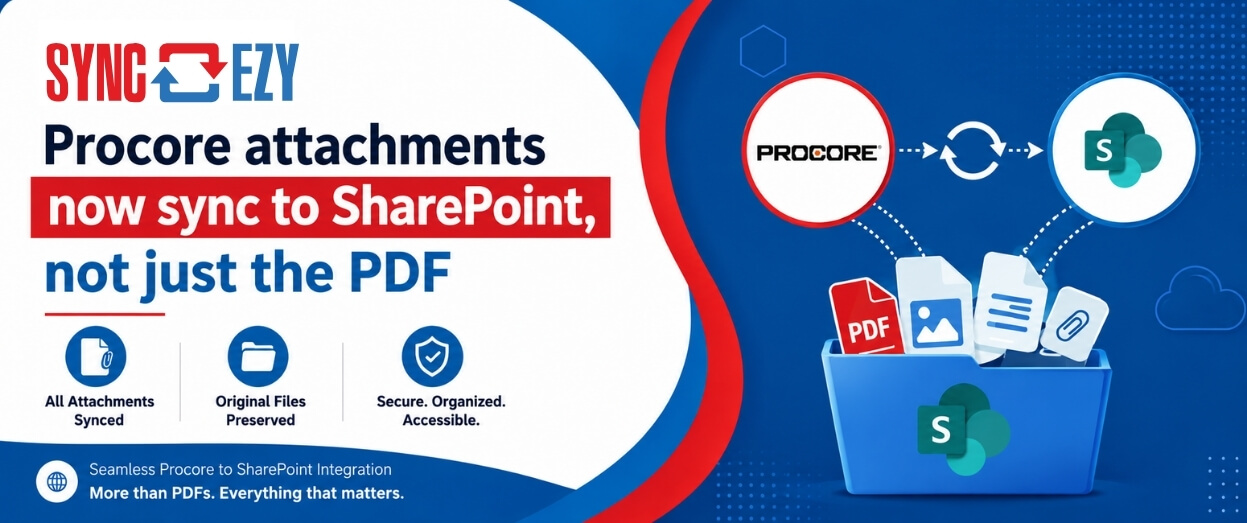
Procore attachments now sync to SharePoint, not just the PDF
If you’ve ever tried to assemble a project closeout package from SharePoint, you’ll know the gap we just closed. The Procore to SharePoint integration now syncs the attachments on your RFIs, Submittals, Commitments, Forms, Inspections, and Observations, not just the generated PDF. The files live in a folder next to the PDF, so the whole… Continue reading Procore attachments now sync to SharePoint, not just the PDF
Hari Iyer | SyncEzy
CEO
Stop Chasing Documents: How Procore and Box Sync to Become a Single Source of Truth
Most construction and field-services businesses we talk to don’t have one big, dramatic document problem. They have a quiet, persistent one. The site team works in Procore, because that’s where the project lives. The office team works in Box, because that’s where the company’s documents live. And somewhere in the middle sits a person, or… Continue reading Stop Chasing Documents: How Procore and Box Sync to Become a Single Source of Truth
Hari Iyer | SyncEzy
CEO
Top Procore Integrations
Procore is where most construction teams run their projects, but it is rarely the only system they use. Files live in SharePoint or Google Drive, hours get logged in a timesheet app, and inspections happen on a phone. The right Procore integrations stop your team copying the same data between all of them. This guide… Continue reading Top Procore Integrations
Hari Iyer | SyncEzy
CEO
SyncEzy SharePoint Integrations: What Microsoft 365 License Do You Need?
SharePoint is often the system of record for documents such as policies, drawings, SOPs, contracts, and compliance files. SyncEzy integrates SharePoint with platforms like Procore, Simpro, SafetyCulture, Autodesk Construction Cloud, Employment Hero, and Zoho, ensuring documents stay in sync across systems automatically. The Short Answer Microsoft 365 Business Basic is sufficient. SyncEzy works with the… Continue reading SyncEzy SharePoint Integrations: What Microsoft 365 License Do You Need?
Hari Iyer | SyncEzy
CEO

