

Hari Iyer | SyncEzy
CEO 8 Min Read
 May 18, 2026
If your team is still managing timesheets across two separate systems, you’re losing hours every payroll cycle to manual entry, reconciliation, and approval workflows that could be automatic. We built the Simpro + QuickBooks Time integration to solve exactly that problem.
In this post, we’ll walk through how the integration works, why it matters, and what real teams are experiencing after they switched it on.
The Problem Nobody Talks About
Most field-heavy businesses use QuickBooks Time (formerly T-sheets) for mobile time capture and Simpro for job costing and project management. Both systems are great at what they do. But running them separately creates a quiet friction that costs more than most teams realize.
Here’s the typical workflow without integration:
Field staff log time in QuickBooks Time — either via the mobile app or a kiosk. They pick their job, allocate hours to cost centers, and maybe note activities.
Managers approve those hours — confirming they’re accurate before payroll runs.
Someone manually reconciles into Simpro — copying or uploading those approved hours so job costing is current and you can see what jobs actually cost.
Payroll processes — either directly from QB Time (if you’re using Xero or QB Online) or someone exports and imports into your payroll system.
That middle step — the manual reconciliation — is where the hidden cost lives. It’s not dramatic. It’s just a few minutes per payroll cycle, a few extra points of failure, and the knowledge that your job costing isn’t live.
What we hear from customers most often is this: “We know our job costs are always a few days behind because the hours don’t land in Simpro until someone manually confirms they match QB Time.”
How the Integration Changes That
The Simpro + QuickBooks Time integration automates the handoff between systems. Here’s what actually happens:
1. Jobs and Activities Flow Both Ways
When you set up the integration, all your job numbers, cost centers, and activities from Simpro are automatically pulled into QuickBooks Time. Your team sees them in the app and picks the right one when logging time.
Any new jobs you add to Simpro after go-live sync across each night. Same for activities. You’re never out of sync on what’s available to choose from.
2. Your Team Logs Time Once
Staff use QuickBooks Time exactly as they would without integration — nothing changes on their end. They can log time three ways:
Mobile app — Individual team members log their own hours on phones or tablets. They select the customer, job, cost center, and any custom fields you’ve configured (like whether they drove their own vehicle). They can clock in/out or manually enter a time range.
Kiosk mode — A shared device at the workshop or job site. Useful if your team comes in together or works as crews. One person (often a supervisor) logs everyone in and out for the day, and team members select which job they’re working on.
Work crew logging — If you have teams that stay together, a supervisor can use the app to log the whole crew in and out as one unit, saving repetition.
All three methods feed the same system. Your team uses what works for how they actually work.
3. Approvals Stay in Your Control
Once hours are logged, managers approve them in QuickBooks Time. You decide:
- Who approves: One person for the whole company, or different team leads for different groups
- How often: Daily, weekly, or fortnightly — whatever matches your payroll cycle
- What they can see: You can filter which jobs each approval group has access to, reducing errors where someone picks the wrong project
This is where overtime rules kick in too. If your team worked overtime on a particular job, you can configure QuickBooks Time to flag it and apply your rates. Those overtime-adjusted hours are what flow into Simpro.
4. Approved Hours Automatically Flow to Simpro
Once you approve, we sync that data overnight into Simpro. Job costing updates automatically. You see real costs for every job, matched to the exact cost centers your team allocated time to.
No re-entry. No CSV export. No waiting for someone to confirm they match.
5. Payroll Happens on Schedule
The hours are now in both systems. If you use Xero or QuickBooks Online, QB Time has native integrations to feed payroll directly. If you use another system, you export the hours as CSV and upload them.
Your payroll processor gets what they need. Your job costing is live. Everyone sees the same numbers.
Why Security Matters
Your timesheets and job data are sensitive. We don’t take that lightly.
The integration is SOC 2 Type II certified, meaning we’ve been independently audited for security, availability, and confidentiality. We also follow CASB-II protocol on all data transfer — think of it as encrypted, verified handshakes between systems.
We provide 24/5 support — from business start in New Zealand through close of business in the US, we’re constantly available if you have questions or need assistance. Whether it’s early morning or late night, if you’re in a different timezone, someone can help.
Your IT team can review our security documentation and compliance certifications. Most IT departments are satisfied quickly once they see the certifications and understand the data flow.
Real Customers, Real Time Saved
Jama Group has been with us since before QuickBooks Time was even called T-sheets. Here’s what they said:
“The T-sheets integration saves us lots of time. We wouldn’t hesitate in recommending this to our teams.”
They’re not alone. Across construction and service companies we work with, the pattern is consistent: once the integration is live, the reconciliation work disappears, job costing becomes current, and payroll moves faster.
One customer noted they used to have someone whose unofficial role was “keeping the two systems from falling out of step.” After go-live, that role didn’t need to exist anymore.
Common Questions (Answered)
How long does it take to set up?
The technical connection takes about a couple of days. The first data sync depends on how much you have in your projects — small setups can go live almost immediately, larger ones might take half an hour.
Then we do a ghost payroll run together with you on a screen share. You approve some test hours, watch them flow into Simpro, and see what the first real cycle will look like. Most customers are live and processing real payroll within a couple of structured sessions.
Can I control which projects sync, and how?
Absolutely. You can pick:
- Full project sync — Everything from Simpro comes across to QB Time
- Documents only — Sync the project structure but not photos or attachments
- Selected folders — Granular control — only sync the projects you choose
- Auto-sync — Every new Simpro project automatically gets a matching setup in QB Time
You can use different modes for different projects. It’s configurable per job.
What if I change my approval structure after launch?
No problem. The company settings in QuickBooks Time let you change who approves, which groups they manage, which jobs they see, and how often approvals happen — all live, with no downtime.
How do overtime and payroll systems connect?
QuickBooks Time applies your overtime rules as hours come in. If someone worked overtime on a job, those hours reflect the right rate when they sync to Simpro.
From there, if you use Xero or QB Online, the integration feeds directly to payroll. If you use another system, you export the hours as CSV. Our side handles Simpro job costing — the payroll system’s integrations handle the rest.
What if I need to set it up for multiple locations or teams?
You can configure different approval groups with different rules, job access, and overtime settings. A team doing maintenance work might see maintenance projects only. A project team might have access to all active jobs. Each group has its own approval chain and settings.
What Happens During Implementation
Here’s the real timeline:
Week 1: We get API access set up and start pulling your job data into QB Time. You and our team align on approval groups, job access rules, and overtime configuration.
Week 2: First data sync happens. We run a ghost payroll to make sure everything looks right. You see test hours flow from QB Time approval into Simpro job costing. Any adjustments happen now.
Week 3: Go-live. Real hours start flowing. Our team stays close for the first cycle to answer questions and help with any edge cases.
Ongoing: We’re available if anything changes — new jobs, new approval structures, payroll system updates. You adjust settings in QB Time; everything else stays in sync.
The Bottom Line
If your team is split between Simpro and QuickBooks Time, you’re losing time and risking manual reconciliation. The integration moves that work into the background where it belongs.
Your field staff keeps using QB Time the way they always have. Your job costing becomes live. Your payroll runs on schedule. And you stop paying someone to keep two systems from falling out of step.
Ready to Stop Double Entry?
If any of this sounds like your workflow, the easiest next step is a short discovery call. We’ll walk through your specific setup, answer questions about how we’d configure it for you, and give you a clear sense of cost and timeline.
Or if you have questions first, feel free to reach out directly — sales@syncezy.com.
We’ve helped hundreds of field teams automate this workflow. We’d love to help you next.
Questions about the integration? We’re here. Reply to this post or reach out directly. Our team is happy to walk through how it would work for your specific setup.
Author
Hari Iyer | SyncEzy
CEO

Hari Iyer is the Founder and CEO of SyncEzy, a pioneering company at the forefront of data integration and automation solutions. With a deep understanding of the power of technology and a passion for solving complex business challenges, Hari has emerged as a visionary leader in the industry. His relentless pursuit of excellence and commitment to delivering tangible results have earned SyncEzy a loyal global clientele.
He is not only a successful entrepreneur but also an active contributor to the technology community, sharing his insights through thought leadership articles, speaking engagements, and mentorship programs. Hari’s ability to navigate the complexities of remote work serves as an inspiration for leaders, highlighting the importance of flexibility, work-life balance, and a results-oriented approach in today’s evolving work landscape.
Under his guidance, SyncEzy has gained widespread recognition for its deep integration solutions that seamlessly connect software applications, eliminate data silos, and enhance operational efficiency.
When not working, Hari is trying to be a better father, reading tech news, playing FPS games, and not exercising as he should.

Related Posts
Categories

TSheets Name Change To Quickbooks Time
TSheets recently announced that they have changed their name and their new name is Quickbooks Time. TSheets has been a part of the Quickbooks family for three years and the name change represents the product being further consolidated into the Quickbooks family. Let’s look at how the TSheets name change will affect your business: If… Continue reading TSheets Name Change To Quickbooks Time
Hari Iyer | SyncEzy
CEO
A Deep Dive into QuickBooks Time and Power BI
In today’s fast-paced business environment, data is more than just numbers on a spreadsheet; it’s the lifeblood of informed decision-making. If you’re using QuickBooks Time to track employee hours and tasks, you’re already on the right path. But what if you could transform those timesheets into dynamic, real-time dashboards filled with actionable insights? That’s precisely… Continue reading A Deep Dive into QuickBooks Time and Power BI
Hari Iyer | SyncEzy
CEO
Unlocking the Power of QuickBooks Time Data: A Comprehensive Guide to Building Reports with Power BI
QuickBooks Time (formerly known as TSheets) is a robust tool for tracking time, managing employee schedules, and overseeing project progress. With SyncEzy’s QuickBooks Time to Power BI integration, businesses can harness this wealth of data to generate insights that drive efficiency, productivity, and profitability. In this blog post, we’ll dive into the key tables and… Continue reading Unlocking the Power of QuickBooks Time Data: A Comprehensive Guide to Building Reports with Power BI
Hari Iyer | SyncEzy
CEO
Maximising Returns at Trade Shows and Events: SyncEzy’s Proven Strategies
At SyncEzy, we make it a point to attend a few key events each year. These trade shows and conferences are often our only opportunities to meet customers face-to-face, and we take full advantage of them. We are proud to say that at any given event, we typically outperform our neighbouring booths by at least… Continue reading Maximising Returns at Trade Shows and Events: SyncEzy’s Proven Strategies
Hari Iyer | SyncEzy
CEO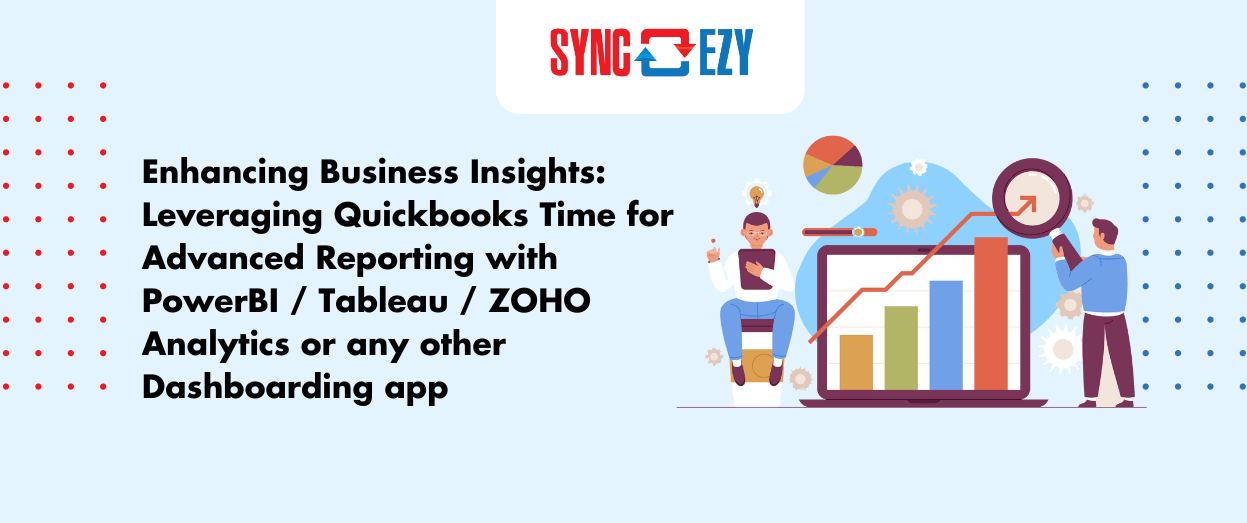
Enhancing Business Insights: Leveraging Quickbooks Time for Advanced Reporting with PowerBI / Tableau / ZOHO Analytics or any other Dashboarding app
In the realm of business operations, the significance of efficient time tracking cannot be overstated. Quickbooks Time, formerly known as TSheets, has established itself as a leading timesheet application since its inception in Boise, Idaho. This transformative journey from a modest startup to being part of the QuickBooks suite signifies its pivotal role in streamlining… Continue reading Enhancing Business Insights: Leveraging Quickbooks Time for Advanced Reporting with PowerBI / Tableau / ZOHO Analytics or any other Dashboarding app
Hari Iyer | SyncEzy
CEO
Boosting Productivity: Integrating QuickBooks Time and Power BI
In the world of business management, time is money, and efficiency is paramount. Enter QuickBooks Time, your trusted companion for tracking employee hours and tasks. But what if you could take that time tracking data to the next level? The answer lies in integrating QuickBooks Time with Power BI, a powerhouse of business intelligence tools.… Continue reading Boosting Productivity: Integrating QuickBooks Time and Power BI
Hari Iyer | SyncEzy
CEO

